If you need to virtualise legacy systems that still run on old hardware, you’re far from alone. Almost every established business has one: an old computer or server in a back room, under a desk or in a cupboard, running a piece of software the business can’t do without. Maybe it’s an accounts package from years ago, a stock or job-costing database, the software that drives a machine on the shop floor, or a bespoke program written by someone who has long since moved on.
It works, so nobody touches it. But the hardware is getting older every year, and when it finally dies, it can take the business’s records with it.
The good news is that in most cases you don’t have to choose between keeping that old hardware alive and a costly software replacement. There’s a third option: virtualisation.
The real risk with old hardware
The software itself rarely wears out. The hardware does. Hard drives, power supplies and fans all have a limited life, and on a machine that’s ten or fifteen years old, a failure is a matter of when, not if.
- Replacement parts are hard to find. Old motherboards, drives and memory are often only available second-hand, if at all.
- Old software often won’t install on new computers. It may need an old version of Windows that modern hardware doesn’t support, and the original installation discs and licence codes are often long gone.
- Backups are often missing or untested. Old systems tend to predate the current backup setup, so they quietly get left out.
- Nobody knows how it was set up. The person who installed it may have left, and the knowledge left with them.
What it means to virtualise legacy systems
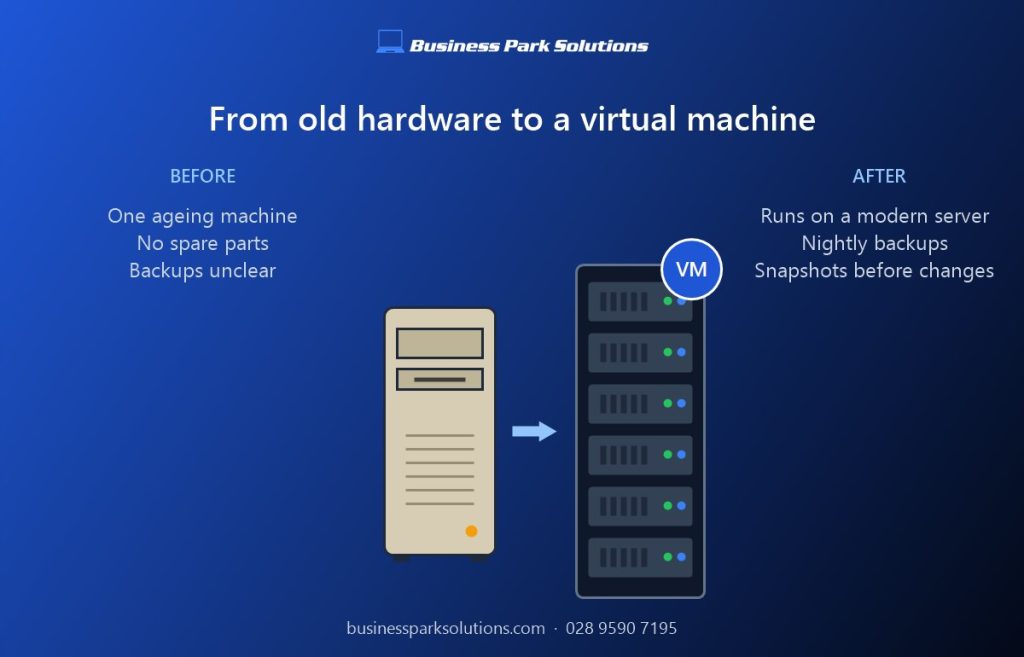
Virtualisation takes the whole of the old computer, the operating system, the software, the settings and the data, and turns it into a virtual machine. That’s a computer that runs as software on a modern, reliable server, alongside other systems.
To the old program, nothing has changed. It still sees the same version of Windows, the same drive letters and the same settings. Your staff still use it the way they always have. But underneath, it’s now running on new hardware with proper backups, and the old box can finally be switched off.
The process of copying a physical machine into a virtual one is often called a “P2V” (physical to virtual) conversion. It’s well-established, and in most cases it’s done without reinstalling anything.
Why virtualise legacy systems?
- No more dependence on ageing hardware. If the server underneath ever fails, the virtual machine can be moved to another one and started again.
- Proper backups of the whole system. The entire virtual machine can be backed up every night, so restoring it means restoring one thing, not rebuilding a computer from scratch.
- Snapshots before changes. Before an update or a change, a snapshot can be taken. If anything goes wrong, you roll back in minutes.
- Often faster than before. Running on modern processors and fast drives, old software frequently feels quicker than it did on its original machine.
- Less to look after. Several old machines can run on one modern server, which means less noise, heat and electricity, and fewer boxes to go wrong.
- Time to plan the next step. It buys you breathing space to replace the software properly, on your timetable rather than in a panic when the old machine dies.
Things to check first
Virtualisation works for the large majority of legacy systems, but a few things need looking at before you start:
- Licensing. Some Windows licences that came with the original computer are tied to that hardware, and some older programs check the machine they’re on. These need checking so the system stays properly licensed after the move.
- USB dongles and licence keys. Many older programs need a physical USB key plugged in. These can usually be passed through to the virtual machine, or connected over the network.
- Connections to machinery. Software that talks to equipment through serial ports, special cards or a direct cable needs planning. Often there’s a workable adapter or network-based option, but occasionally the old hardware has to stay.
- Very old operating systems. Systems such as Windows XP or old versions of Windows Server no longer get security updates (Microsoft’s product lifecycle pages show when each version’s support ended). Virtualising them doesn’t change that, so they should be kept away from the internet and, ideally, walled off from the rest of your network.
How we virtualise legacy systems
- Find out what’s there. What the machine does, what software and data it holds, who uses it, and what it’s connected to.
- Take a full backup of the old machine before anything else, so there’s always a way back.
- Convert and test. A virtual copy is made and tested while the original keeps running, so the business isn’t disrupted. Staff can check their everyday tasks work as normal.
- Switch over at a quiet time, usually out of hours or at a weekend, with a final copy of the latest data.
- Keep the old machine for a while, switched off, just in case, before it’s retired and its drives are securely wiped.
- Back it up and monitor it like any other system, and agree a longer-term plan for the software if it needs one.
Is it a permanent fix?
For some systems, yes. When you virtualise legacy systems that only hold old records, or that run on their own with no internet connection, they can sit happily in a virtual machine for years. For software that’s central to your day-to-day work, virtualisation is best seen as a safe bridge: it takes away the risk of losing everything to a hardware failure now, and gives you time to move to something modern when it suits you.
Got an old machine you’re nervous about?
If there’s a computer in your business that everyone is afraid to switch off, it’s worth a conversation before it makes the decision for you. Business Park Solutions helps small businesses across Northern Ireland virtualise legacy systems and move them onto modern, backed-up hardware, as a one-off project or as part of our managed IT support.
Get in touch for a free, no-obligation look at your setup, or call 028 9590 7195.